
How to Capture Every Business Receipt: Paper, Email, Mobile, and Cash
August 27th, 2026 | Small Business Resources
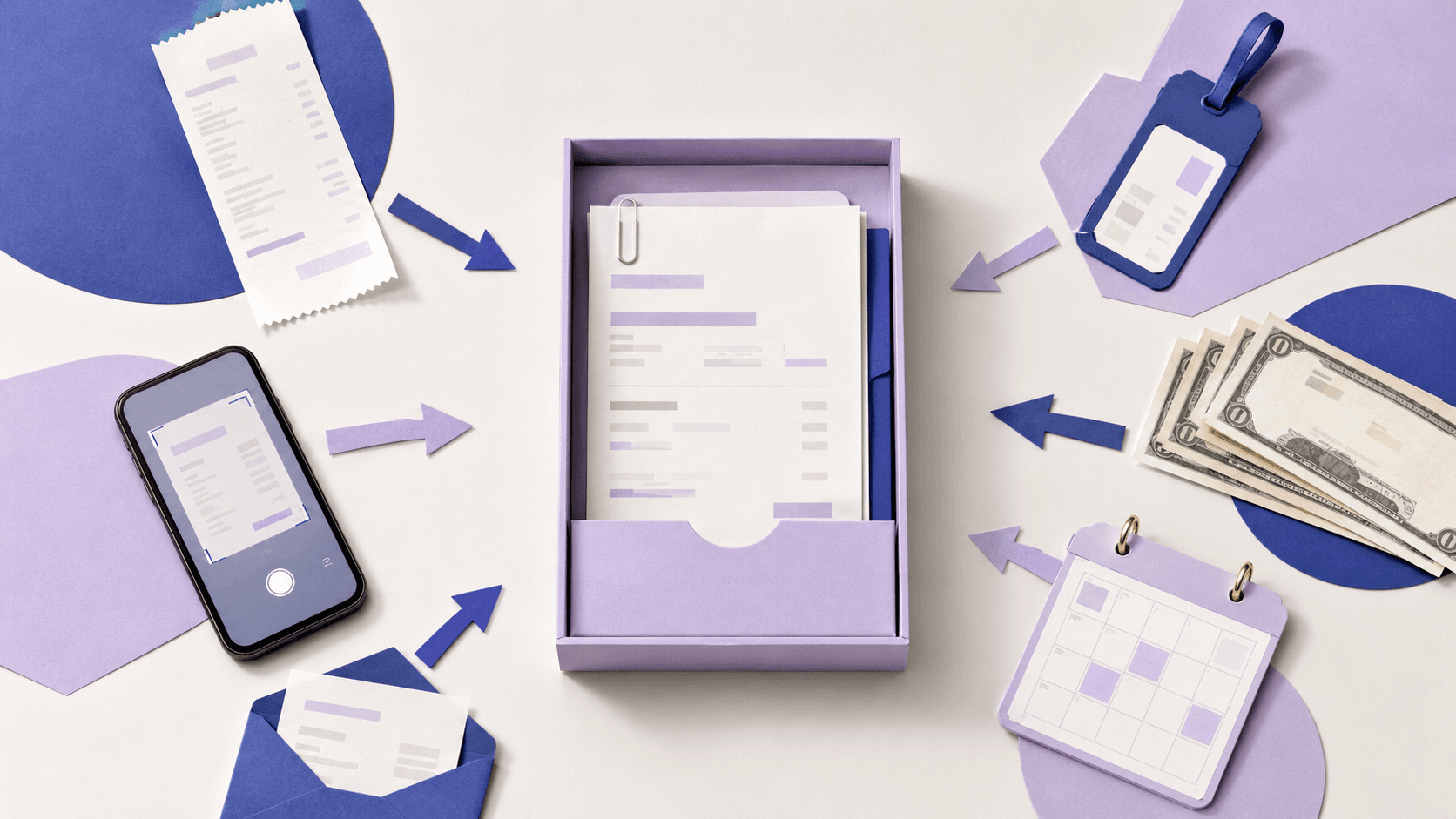
Business receipts have a habit of arriving in different places.
The best approach is to capture each receipt as close to the purchase as possible and send every record to one central system. That small habit helps prevent lost documents, incomplete expense records, and end-of-month guesswork.
A paper receipt gets folded into your wallet. An online purchase confirmation lands in your inbox. A subscription renews automatically. A cash purchase produces a small slip of paper that may be your only record of the expense.
For a self-employed contractor moving between job sites, a freelance consultant expensing client meetings, or an Airbnb host tracking maintenance purchases, receipts arrive in too many places to manage without a consistent system.
These small habits will help preventlost documents, incomplete expense records, and end-of-month guesswork:
Quick answers about capturing business receipts
How can I capture a receipt immediately after a purchase?
Photograph a paper receipt with a mobile receipt capture app before leaving the store, restaurant, or jobsite. Forward emailed receipts to your receipt management system as soon as they arrive.
What should I do with a paper receipt as soon as I receive it?
Check that the receipt is complete and readable, photograph or scan it, confirm the digital image is clear, and add the business purpose while you still remember it.
Can I photograph a receipt and dispose of the original?
Electronic copies can generally be used for recordkeeping when they are accurate, legible, accessible, and properly retained. Keep the original when it is needed for a return, warranty, contract, or specific legal or tax requirement.
How can I capture receipts while traveling for business?
Use your phone to capture paper receipts immediately, forward travel confirmations and electronic receipts, and add a note explaining the business purpose of the trip.
How do I capture receipts that arrive by email?
Forward them to a dedicated receipt management address or use an email rule to forward qualifying purchase emails automatically.
Can online purchase receipts be captured automatically?
In many cases, yes. Email filters can automatically forward receipts from selected vendors or messages with predictable subject lines to your receipt management system.
How can I capture a receipt when I pay with cash?
Request a receipt, photograph it immediately, and record the amount, vendor, category, payment method, and business purpose. Cash expenses require extra attention because there may be no bank transaction to help recreate the purchase later.
Can I capture receipts from my phone without a scanner?
Yes. A mobile receipt capture app can use your phone’s camera to digitize paper receipts without a separate scanner.
Can forwarded emails become organized receipt records?
Yes. A receipt management system can process the forwarded message and its attachments, extract transaction details, and store them as searchable records.
How do I capture receipts from subscription purchases?
Automatically forward recurring receipt emails when possible, then review subscription transactions regularly to confirm that the receipt was captured and the service is still needed.
Why receipts get lost even when you try to save them
Most receipt problems are not caused by carelessness. They happen because modern purchases create records in too many different places.
Your receipts may be spread across:
- A wallet or work bag
- Your vehicle
- Personal and business email accounts
- Your phone’s camera roll
- Vendor websites
- Download folders
- Travel apps
- Paper files
- Bank and credit card statements
Saving every receipt does not necessarily mean your receipts are organized. If you still need to search several locations to find one purchase, you have stored documents without creating a dependable capture process.
A better system gives every receipt the same destination, regardless of where it originated.
How can I capture a receipt immediately after a purchase?
The easiest time to capture a receipt is when the purchase is still in front of you.
For a paper receipt, open your mobile receipt capture app and take a clear picture before putting the receipt away. The entire process should take only a few seconds.
Neat’s mobile app allows you to photograph receipts, import existing images, and capture multiple documents in a row. Image filters can also improve readability and help Neat’s OCR technology extract information from the document.
For the best image:
- Place the receipt on a flat surface.
- Use a background that contrasts with the paper.
- Make sure there is enough light.
- Include the entire receipt in the frame.
- Avoid shadows, fingers, folds, and glare.
- Confirm the image is readable before leaving.
- Add the business purpose while it is still fresh in your mind.
Immediate capture keeps one small task from becoming a much larger project later.
What should I do with a paper receipt as soon as I receive it?
Before putting a paper receipt into your pocket, bag, or vehicle, quickly check that it contains the information you may need.
Look for:
- Vendor name
- Transaction date
- Items or services purchased
- Subtotal
- Taxes and fees
- Tip, when applicable
- Total amount
- Payment method or card details
If the receipt is missing important information, ask the vendor for a more detailed copy when possible.
Next, photograph or scan the receipt. Neat uses optical character recognition, or OCR, to read important information such as the vendor, date, and amount. The extracted data becomes keyword searchable, helping you find the receipt later without opening individual images or searching through folders.
Review the extracted information for accuracy and add details that may not appear on the receipt, including:
- Expense category
- Business purpose
- Customer or project
- People involved in a business meal
- Whether the purchase was paid with business, personal, or cash funds
OCR reduces manual entry, but it cannot always determine why an expense was necessary for your business. That context still comes from you.
Can I photograph a receipt and dispose of the original?
In many situations, a clear and complete digital copy can replace an ordinary paper receipt for recordkeeping purposes.
The IRS recognizes electronic storage systems that image paper books and records, provided the system produces legible and accessible records that can support the information reported on a tax return. The IRS also states that electronic records should be retained for as long as the related recordkeeping requirements apply.
Before disposing of a paper receipt, confirm that:
- The entire receipt was captured.
- All important details are readable.
- The image is stored in a secure, dependable system.
- You can retrieve and reproduce the record when needed.
- The document is being retained for the appropriate period.
- The original is not required for another purpose.
Keep the paper original when it may be needed for:
- A product return or exchange
- A warranty claim
- Insurance documentation
- A rebate
- A signed agreement or contract
- A title, certificate, or other formal document
- A specific state, local, industry, or tax requirement
Thermal paper receipts can fade over time, so digitizing them promptly is still a good idea even when you plan to keep the original.
Recordkeeping requirements vary by document, transaction, location, and business. Review the IRS guidance on why businesses should keep records and consult a qualified tax or legal professional about your particular requirements.
How can I capture receipts while traveling for business?
Travel creates more opportunities for receipts to disappear. You may be moving between an airport, hotel, rental car, restaurant, customer site, and conference venue in the same day.
Do not wait until you return home to organize everything.
Capture paper travel receipts immediately
Photograph receipts for meals, parking, tolls, ground transportation, supplies, baggage fees, and other travel expenses as you receive them.
After capturing the receipt, add a short note about the business purpose. For example:
- Transportation to customer meeting
- Dinner during industry conference
- Parking at project site
- Supplies purchased for customer presentation
Forward digital travel receipts
Forward confirmations and receipts for:
- Airfare
- Hotels
- Rental cars
- Rideshare services
- Conference registration
- Internet access
- Baggage fees
Be careful to distinguish a reservation confirmation from a final receipt. A confirmation may show the amount expected, while the final receipt shows what was actually charged.
Use one temporary location for uncaptured paper
If you cannot photograph a receipt immediately, place it in one designated section of your wallet, travel organizer, or work bag. Capture everything in that location at the end of the day.
This should be a temporary backup, not the main system.
How do I capture receipts that arrive by email?
Forward electronic receipts to the same system where you keep paper receipt images.
Every Neat Cloud subscription includes a personalized Neat Cloud Email-In address. You can forward electronic receipts and supported attachments to that address so they appear in your Neat account.
This is more useful than leaving receipts in your inbox because the forwarded documents become part of your organized financial records.
Neat’s OCR technology can read key information from supported documents, turning the receipt into searchable data. Instead of remembering which email account received a receipt, you can search your centralized records using details such as the vendor, date, or amount.
Before deleting the original email, confirm that:
- The forwarded receipt arrived successfully.
- All attachments were included.
- The document is readable.
- The extracted information is accurate.
- The record contains the necessary business context.
Can online purchase receipts be captured automatically?
Email rules can reduce the amount of receipt forwarding you need to do manually.
You may be able to create a rule in your email provider that automatically forwards messages when they:
- Come from a specific vendor
- Include words such as “receipt” or “payment confirmation”
- Contain a PDF receipt
- Are sent to a dedicated purchasing email address
- Match a recurring subscription message
Automatic forwarding works best for predictable vendors and recurring purchases. Avoid creating rules that are so broad that unrelated messages, payment reminders, advertisements, or shipping updates are treated as receipts.
Test every rule after creating it and review the resulting records regularly. Automation should reduce repetitive work, but it should not eliminate your review process.
Can forwarded emails become organized receipt records?
Forwarding is the capture step. Processing and organization turn the email into a usable business record.
When supported emailed receipts and attachments are sent to Neat, OCR technology reads key transaction details and converts them into data. You can then review, categorize, search, and connect the receipt with the corresponding expense.
Neat can also suggest matches between receipts and transactions based on information such as the transaction date and amount. This helps connect the proof of purchase with the financial activity it supports.
The result is more useful than an email sitting in an inbox because the record can include:
- The original document
- Vendor
- Transaction date
- Amount
- Expense category
- Business purpose
- Payment method
- Related financial transaction
How can I capture a receipt when I pay with cash?
Cash purchases require one of the strongest receipt capture habits because they do not automatically create a bank or credit card transaction.
Without a receipt or written record, you may have difficulty remembering the purchase or demonstrating that it was related to the business.
When paying with cash:
- Ask the vendor for a detailed receipt.
- Check that the receipt shows the date, vendor, purchase, and amount.
- Photograph the receipt before leaving.
- Mark the payment method as cash.
- Add the expense category and business purpose.
- Record which business cash account or fund was used.
- Keep any additional supporting documentation.
If a traditional receipt is unavailable, create a written record at the time of purchase. Include the vendor, date, amount, items purchased, payment method, and business purpose. Keep any supporting evidence, such as an order confirmation or communication with the vendor.
A self-created record may not carry the same weight as a vendor-issued receipt, but recording the expense immediately is better than trying to recreate it months later.
Neat also allows documents to be associated with cash transactions, helping you keep the receipt and the cash expense connected.
Can I capture receipts from my phone without a scanner?
You do not need a dedicated scanner to capture ordinary paper receipts.
A smartphone camera and a receipt capture app can digitize receipts from almost anywhere. This is especially useful for business owners who work at customer locations, travel frequently, or spend most of their day away from a desk.
A traditional scanner may still be helpful for:
- Large backlogs
- Multipage documents
- Oversized records
- High-volume administrative work
- Documents requiring particularly detailed images
For day-to-day receipt capture, however, your phone is usually the fastest and most convenient option.
How do I capture receipts from subscription purchases?
Subscription receipts are easy to overlook because the purchases happen automatically. A recurring charge may continue for months before you stop to ask whether the business still uses the service.
Create an email rule that forwards receipts from recurring vendors to your receipt management system. Then review subscription expenses regularly to confirm that:
- Each charge has a corresponding receipt.
- The amount matches the expected price.
- The subscription is categorized consistently.
- The service is still being used.
- The charge belongs to the business.
- Duplicate or unnecessary subscriptions are canceled.
- Annual renewals are not mistaken for unexpected charges.
Connect your business bank and credit card accounts when possible. Once connected, transactions can appear in Neat and be matched with receipts and other supporting documents.
This creates a useful check: the transaction confirms that money moved, while the receipt explains what you purchased.
A simple system for capturing every business receipt
You do not need one capture method. You need one destination supported by several simple methods.
Use this workflow:
For paper receipts
Photograph them with your phone immediately after the purchase.
For emailed receipts
Forward them to your receipt management system or use carefully tested email rules.
For online purchases
Save or import the final receipt if one is not delivered by email.
For travel receipts
Capture them throughout the trip and add the business purpose before the details become difficult to remember.
For cash purchases
Request a detailed receipt, photograph it immediately, and record the payment method and business purpose.
For subscriptions
Automate forwarding when possible and review the recurring charges regularly.
For every receipt
Send it to the same central location, verify the extracted information, and make sure the record explains the business expense.
How Neat helps you capture and organize every business receipt
Neat gives small-business owners one central place to capture, organize, and retrieve receipts, regardless of how a purchase was made.
Instead of creating separate processes for paper receipts, online purchases, cash expenses, and recurring subscriptions, you can bring each record into the same organized system.
Capture paper receipts from your phone
The Neat mobile app lets you photograph receipts as soon as you receive them. You can also import receipt images already saved on your phone and use batch capture when you have several documents to upload.
This means you can capture a receipt at a store, restaurant, jobsite, airport, or customer location without waiting until you return to your desk.
Forward emailed receipts directly to Neat
Every Neat Cloud subscription includes a personalized Neat Cloud Email-In address. Forward electronic receipts, purchase confirmations, and supported attachments to this address, and they will appear in your Neat account.
For predictable purchases and recurring subscriptions, you may also be able to create email rules that automatically forward qualifying receipt emails to Neat.
Turn receipt images into searchable information
Neat uses OCR technology to read important information from uploaded receipts, including details such as the vendor, transaction date, and amount.
The extracted information becomes keyword searchable, so you can locate a receipt using its data instead of opening individual images or searching through folders. You can also review the information, correct it when necessary, and add details such as the expense category, payment method, project, customer, or business purpose.
Organize cash purchases
When you pay with cash, Neat gives you a place to store the receipt and document the expense before it is forgotten.
After photographing the receipt, record that the purchase was paid with cash and add the related category and business purpose. Supporting documents can also be connected with cash transactions in Neat, helping you maintain a more complete record of where the money went.
Match receipts with financial transactions
Connecting your business bank and credit card accounts brings recent transactions into Neat. Those transactions can then be matched with receipts, invoices, bills, and other supporting documents.
Neat can suggest potential receipt matches using information such as the transaction date and amount. Matching the receipt with the transaction gives you both sides of the record: proof of what you purchased and confirmation of how it was paid.
Keep everything accessible in one place
Once receipts are captured, Neat keeps the original documents and their extracted information together. Rather than searching your inbox, wallet, camera roll, desktop, and paper files, you have one place to find and manage your business records.
For an owner who already handles most parts of the business, that creates a simpler routine:
- Capture or forward the receipt.
- Review the information extracted by OCR.
- Add the category and business purpose.
- Match the receipt with its transaction.
- Find the record later using keyword search.
The result is not just a digital collection of receipt images. It is an organized, searchable expense record that helps you stay in control throughout the year.
Capture it once so you can find it anytime
Receipt organization should not require a large cleanup at the end of every month or year.
The most dependable system is built around small actions: photograph the paper receipt, forward the email, record the cash purchase, and review recurring charges. When each receipt is captured close to the transaction, you spend less time trying to remember what happened later.
Neat brings paper receipts, emailed documents, imported files, cash expenses, and financial transactions into one organized system. OCR technology reads important receipt information and makes the data keyword searchable, helping you find the record you need without chasing paperwork.
Try Neat free and start building a receipt capture process that keeps your business organized all year.
Share This Article


Popular

September 23rd, 2026

March 9th, 2022


June 26th, 2020


October 2nd, 2026