
How To Handle Missing, Faded, Mixed and Unusual Receipts
September 15th, 2026 | Small Business Resources
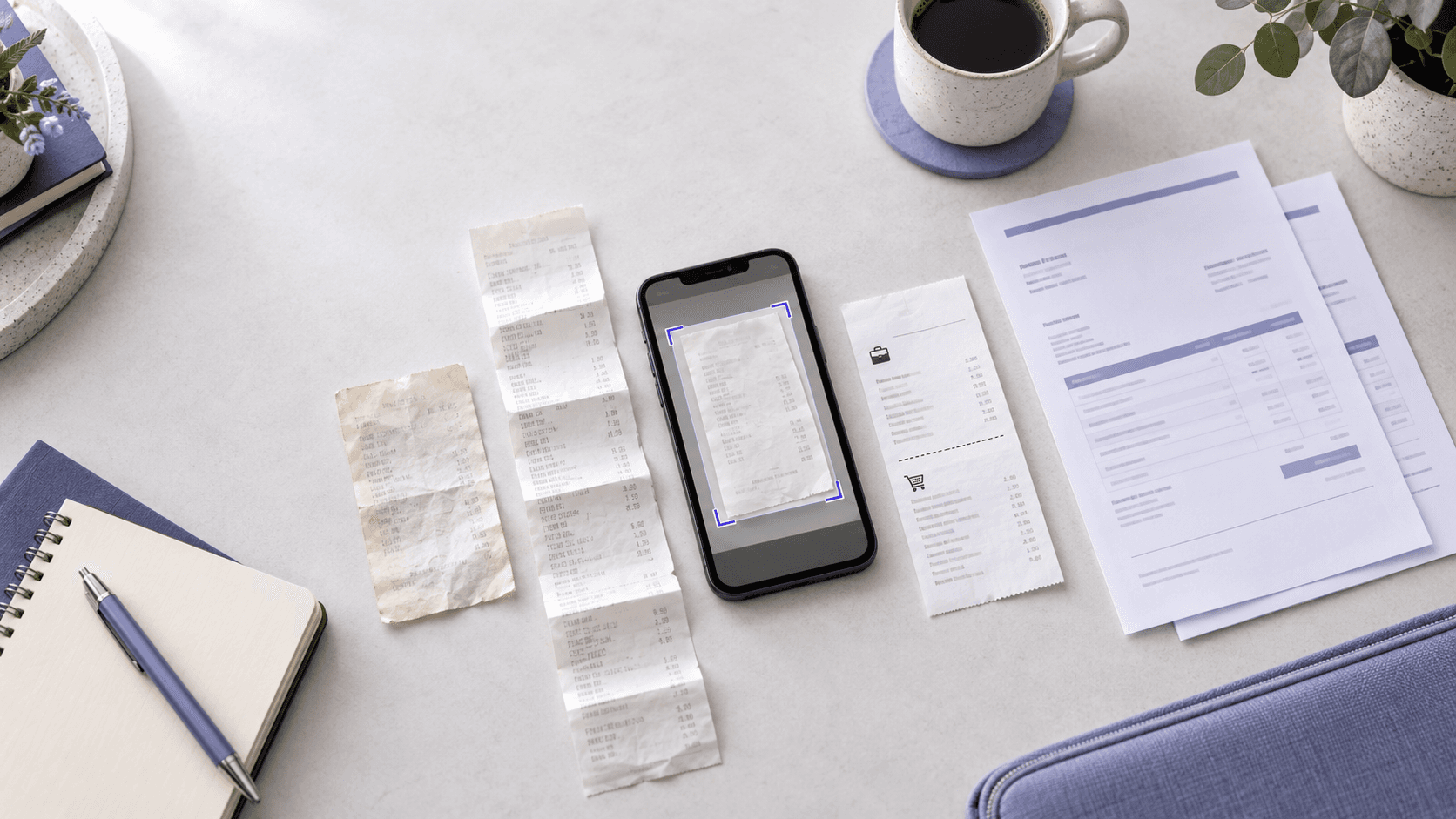
Freelance photography work rarely produces a perfectly organized trail of standard receipts. A client lunch may share a receipt with a personal purchase. An equipment invoice may run several pages. A gas station receipt may fade before the end of the month. Sometimes a vendor provides no receipt at all.
These situations do not require a complicated filing system. They require a consistent way to preserve the evidence you have, record the details that are missing and keep everything connected to the correct business expense.
Quick answers about missing, faded and unusual receipts
How do I keep receipts from fading before I digitize them?
Digitize paper receipts as soon as possible because thermal printing can become difficult to read over time. Until capture, store receipts flat in a cool, dry and dark location away from direct sunlight, heat and moisture. After photographing or scanning a receipt, confirm that the vendor, date, purchased items and total are legible before discarding or filing the original.
What should I do if a vendor does not provide a receipt?
First, ask the vendor for a duplicate, emailed receipt or paid invoice. If one is unavailable, preserve other supporting records, such as an order confirmation or payment record, and add a note containing the vendor, date, amount, items purchased and business purpose. A bank or credit card transaction may show payment, but it may not explain what was purchased.
How can I capture multi-page receipts or invoices?
Capture every page in its original order and combine the images into one document whenever possible. Include itemized pages, totals, payment details and any supporting pages that explain the transaction. Before saving the document, check that no page is missing, upside down, cut off or too blurry to read and that the final total is visible.
How do I capture a receipt that contains both business and personal purchases?
Preserve the entire receipt, identify the business items and record only the business portion as an expense. Add a note showing how the business amount was calculated, including any allocated tax or tip. Do not crop out or alter the personal items if doing so would remove context needed to understand the original transaction.
What should a freelancer do with a difficult receipt?
When a receipt is missing, faded, mixed or unusually formatted, preserve the clearest record available and add enough context to explain the expense. Digitize fading paper promptly, request a duplicate when a receipt is missing, capture every page of a long invoice and separate the business portion of a mixed purchase. Keep supporting documents together in one searchable system.
The goal is not to make every receipt look identical. It is to create a complete record that shows who was paid, how much was paid, when the expense occurred, what was purchased and why it was related to the business.
The IRS explains that supporting documents for business expenses should identify the payee, amount, proof of payment, date and a description of the item or service. It also notes that a combination of documents may be needed to support all parts of an expense.
If you are still building your everyday process, start with Receipt Capture for Small Businesses: What It Is and How to Get Started. The guidance below focuses on the exceptions that do not fit a routine capture workflow.
How do I keep receipts from fading before I digitize them?
The best way to protect a paper receipt from fading is to digitize it while every detail is still readable. Capture the receipt as close to the time of purchase as possible, then verify that the vendor, date, individual items, taxes and total are visible in the digital copy.
Use this capture process before the receipt fades:
- Place it on a flat surface that contrasts with the paper.
- Smooth the receipt without applying heat.
- Capture the entire receipt, including the vendor, date, individual items, taxes and total.
- Review the image before discarding or filing the paper copy.
- Record the business purpose while the purchase is still easy to remember.
If the receipt has already started to fade, capture an original image first and then try a grayscale version. The University of Illinois System’s Scanning Records Guide recommends grayscale for documents with fading, low contrast or poor legibility. It also recommends checking that the smallest details and the entire image area have been captured.
When using a traditional scanner, the guide recommends 300 pixels per inch for most records. If the first scan is difficult to read, increase the resolution and scan it again. Keep the paper copy when its condition prevents you from producing a complete, readable digital image.
The Neat mobile app can detect receipt edges, crop the image and apply color, grayscale or black-and-white filters that may improve readability and OCR processing. You can also review and edit fields such as the vendor, date, amount, category and notes before uploading the record.
What should I do if a vendor does not provide a receipt?
Ask the vendor for a duplicate receipt, itemized invoice or emailed confirmation first. If none is available, create a record promptly and keep it with other evidence of the purchase, such as a card statement, canceled check, order confirmation, contract, delivery record or email exchange.
Record the vendor, date, amount, payment method, items purchased and business purpose.
A practical missing-receipt record should answer six questions:
- Who received the payment?
- When did the purchase occur?
- How much did you pay?
- What did you buy?
- How did you pay?
- Why was it a business expense?
Do not create a replacement that looks like an original vendor receipt. Label your record clearly as a missing-receipt note or expense memo and attach the documents that support it.
Can a bank or credit card statement replace a missing receipt?
A bank or credit card statement can help prove that a payment occurred, but it may not show what was purchased or why it was business-related.
Treat the statement as one part of the record, not automatically as a complete replacement for an itemized receipt. The IRS notes that receipts, invoices, account statements, canceled checks and other documents may work together to support an expense.
Some expenses have additional substantiation rules. If the amount is significant or relates to travel, gifts, a vehicle or another specially regulated category, ask a qualified tax professional whether your records are sufficient.
In Neat, you can import the supporting invoice, confirmation, screenshot or other document, add notes and keep it searchable with the expense information. If you use Neat’s transaction features, you can also match the documentation with the related financial transaction, creating a more complete record than either item provides by itself.
How can I capture multi-page receipts or invoices?
Capture every page in order and keep the pages together as one record. Include the page showing the vendor and invoice number, all pages containing line items, and the page showing taxes, credits, payment terms and the final total.
Review the combined file to confirm that no page is missing, duplicated, cropped or out of order.
Whenever possible, download the vendor’s original PDF. If you must photograph a paper invoice, use the same orientation and lighting for every page. Place the pages on a contrasting surface, keep the camera parallel to the document and check small print before uploading.
An invoice and proof of payment serve different purposes. The invoice explains what was billed, while a payment confirmation or financial transaction can show that it was paid. Keep both when the invoice itself does not show payment.
Neat allows users to combine separate captures, reorder pages and manage multi-page items. In the mobile app, selecting Combined keeps multiple captured pages together as one item. Use Separated when the images are different receipts that should remain individual records.
How can I capture a receipt that contains both business and personal purchases?
Digitize the entire original receipt, then identify and record only the business-related line items as business expenses. Separate the business and personal amounts, assign the appropriate business category and add a short note explaining the purchase.
Keep the full receipt so the recorded business amount can be traced back to the original transaction.
For example, imagine a freelancer buys a $50 computer cable and $30 of personal household items in one purchase, plus $6 in sales tax. If all items were taxed at the same rate, the cable represents 62.5% of the pre-tax purchase, so $3.75 of the tax would be allocated to the cable.
The business portion would be $53.75. Keep the full $86 receipt, but record only the documented business share as a business expense.
When tax rates, discounts or fees apply differently to individual items, use the itemized amounts shown on the receipt. If the correct allocation is unclear, document the method you used and confirm it with your bookkeeper or tax professional.
Receipt splitting in Neat is designed for purchases that include business and personal items or expenses belonging to different categories, clients or projects. Each split can have its own amount, category, folder, project, client and notes.
Separating the expense does not require hiding the personal lines or altering the original image. Preserve the full receipt, then make the accounting record accurately reflect the business portion.
How should I handle other unusual receipt situations?
The same rule applies to almost every unusual receipt: preserve the original evidence, add the missing context and connect related documents.
A simple exception workflow for freelancers
When an unusual receipt lands in front of you, use the same short process every time:
- Preserve what exists. Photograph, scan, download or forward the original record.
- Fill in the context. Add the vendor, date, amount, payment method and business purpose.
- Attach supporting evidence. Keep invoices, statements, confirmations and related correspondence with the expense.
- Separate what does not belong. Split personal purchases, different clients or multiple expense categories accurately.
- Review the record. Confirm that the image is readable, all pages are present and the total is correct.
- Store it centrally. Put the complete record where you can search for it by vendor, date, amount, category, project or client.
This process takes less time when it happens close to the purchase. It also gives you a more reliable view of business spending because unusual transactions are not left uncategorized or forgotten.
How Neat helps organize receipts that do not fit the usual pattern
Neat is built for freelancers and owner-operators who manage their own financial records and receive documents in many formats.
You can photograph paper receipts with the mobile app, forward electronic receipts, upload files or use a compatible scanner. Neat uses OCR to extract receipt information and turns the document into a searchable record.
For exceptions, Neat can keep multiple pages together, reorder captured pages, split a mixed receipt across different categories or purposes, and connect documentation with financial transactions.
That means a faded receipt, missing-receipt memo, long invoice or mixed purchase can live in the same organized system as the rest of your business records.
You do not need a separate workaround for every unusual receipt. You need one repeatable process that preserves the original, records the business context and keeps related information together.
Capture it once. Find it anytime. Try Neat free and start building a clearer, year-round record of your freelance expenses.
This article provides general recordkeeping information and is not tax or legal advice. Requirements can vary by expense and individual circumstances. Consult a qualified tax professional about your records and deductions.
Share This Article


Popular

September 23rd, 2026

March 9th, 2022


June 26th, 2020


October 2nd, 2026