
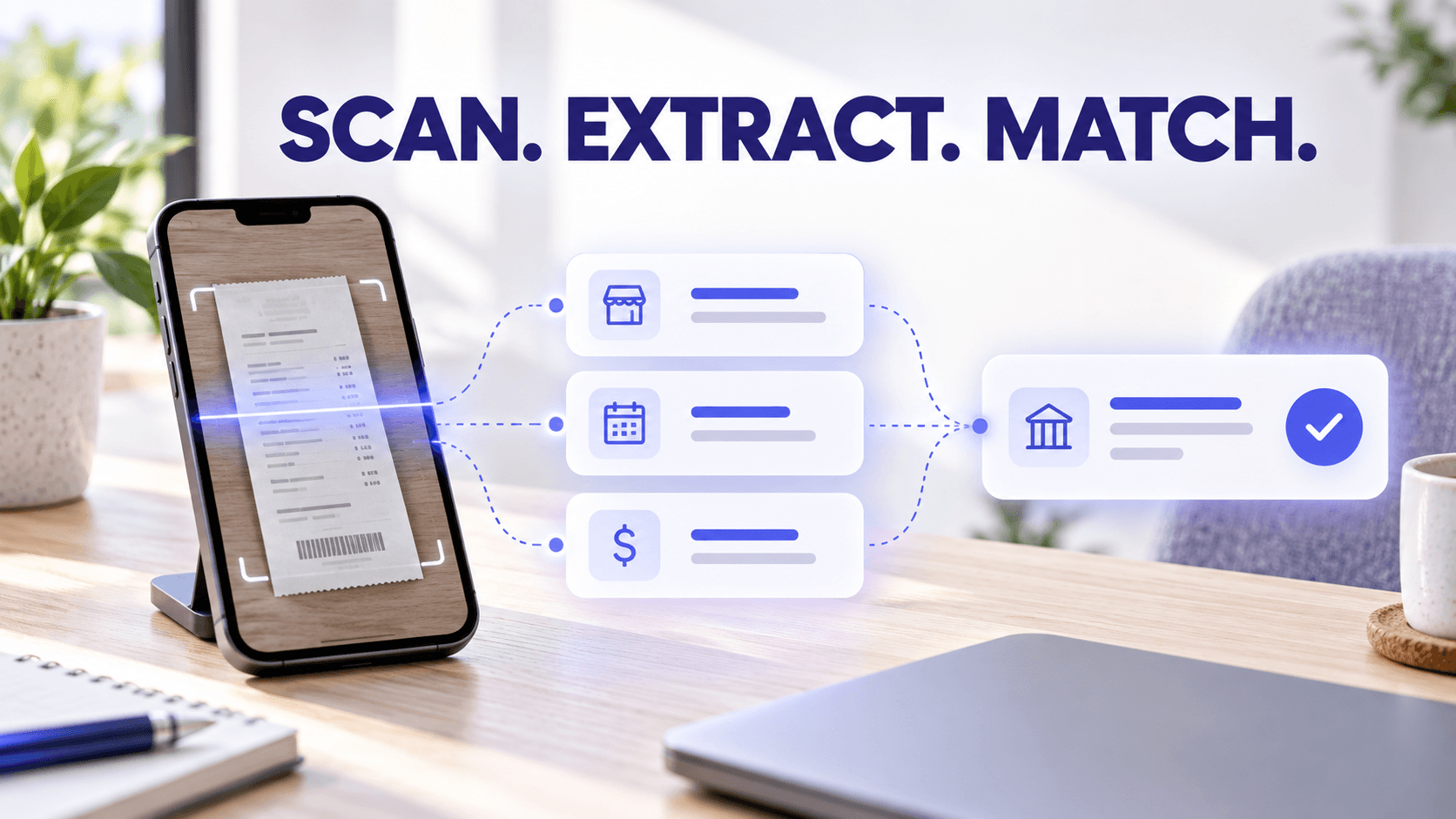
Receipt OCR uses optical character recognition to convert the visible text on a receipt image into machine-readable information. Receipt software can then identify fields such as the vendor, transaction date and amount, making the document searchable and reducing the need to type receipt details manually.
When receipt OCR works with transaction matching, the software compares extracted receipt details with financial-account activity. A receipt showing a $186.42 purchase on September 18 can be compared with transactions having a similar amount, date and merchant. The system may suggest a likely match, but the user should review and confirm that the receipt and financial transaction belong together.
OCR captures information from the document. It does not independently determine whether an expense is appropriate, deductible, assigned to the correct client or supported by a sufficient business purpose.
Quick answers about receipt OCR
What is receipt OCR?
Receipt OCR is technology that recognizes printed or handwritten text in a receipt image and converts it into searchable, editable data. Receipt software may then parse the recognized text into structured fields such as vendor, date, subtotal, tax and total.
What is receipt scanning software?
Receipt scanning software captures a paper or digital receipt, stores its image and may use OCR to make the content searchable. More advanced systems can also extract fields, organize documents, categorize expenses and connect receipts with financial transactions.
How does OCR extract information from receipts?
OCR analyzes the pixels in an image, identifies characters and words and converts them into text. A separate parsing or data-extraction process interprets that text and assigns values to fields such as vendor, transaction date and total amount.
How accurate is receipt OCR?
Receipt OCR accuracy varies based on the receipt, image quality, layout, language and fields being extracted. Clear digital receipts and flat, well-lit images generally produce better results than faded, wrinkled, handwritten or partially captured receipts.
OCR output should be reviewed before it is used for bookkeeping, reimbursement or tax preparation.
What receipt details can OCR recognize automatically?
Depending on the software and receipt, OCR may recognize:
- Vendor
- Transaction date and time
- Subtotal
- Sales tax
- Tip
- Total
- Payment method
- Partial card number
- Receipt or order number
- Currency
- Individual line items
Recognizing a field is not the same as confirming that it is correct or explaining its business purpose.
How does receipt OCR work with transaction matching?
OCR provides details from the receipt, while a connected financial account provides details about the payment. Transaction-matching software compares fields such as the vendor, date and amount to identify possible matches.
The user reviews the suggested result and links the correct receipt with the financial transaction.
How does receipt scanning reduce bookkeeping work?
Receipt scanning reduces bookkeeping work by replacing repeated manual entry with captured data, searchable records and structured review. Bookkeepers can spend more time checking exceptions, reconciling accounts and correcting unusual transactions instead of typing every vendor, date and amount.
What is the difference between scanning a receipt and extracting its data?
Scanning creates a digital image of the receipt. Data extraction converts information visible in that image into usable fields.
A receipt can be scanned without having its information extracted. It can also be searchable through basic OCR without every important field being correctly identified.
What is receipt scanning software?
Receipt scanning software is a tool for capturing, storing and processing receipts.
The capture may begin with:
- A smartphone camera
- A desktop scanner
- An imported image
- A downloaded PDF
- An emailed receipt
- An online order confirmation
Basic scanning software may create only an image or PDF. OCR-enabled software can go further by recognizing the text in that image.
A complete receipt-management system may combine several capabilities:
- Document capture
- Image enhancement
- OCR
- Field extraction
- Search
- Categorization
- Transaction matching
- Review
- Reporting or export
These capabilities are related, but they are not the same thing.
For example, photographing a contractor’s supply-house receipt creates an image. OCR recognizes the printed text. Data extraction identifies the vendor, date and total. Categorization may suggest materials or job supplies. Transaction matching compares the receipt with the contractor’s card activity.
Each stage adds a different layer of usefulness.
How does receipt OCR work?
Receipt OCR normally follows several technical steps.
1. The receipt is captured
The process starts with an image or digital document.
The receipt might be photographed, scanned, uploaded, emailed or imported from another source. Image quality at this stage affects everything that follows.
The capture should include the complete receipt without glare, shadows, folds or cropped information.
2. The image is prepared
The software may improve the image before recognizing its text.
Image-processing steps can include:
- Cropping
- Rotation
- Perspective correction
- Contrast adjustment
- Background removal
- Noise reduction
- Detection of page boundaries
- Separation of multiple pages
These adjustments make the text easier for the OCR engine to analyze.
3. OCR recognizes the text
The OCR engine identifies text regions, characters and words in the image.
General OCR systems can return the recognized words and their positions on the page. Document-oriented OCR may also identify blocks, lines, paragraphs and spatial relationships.
This stage turns the visible receipt into text, but the text may still be an unstructured collection of words and numbers.
4. The software identifies receipt fields
Receipt-processing software analyzes the recognized text and attempts to determine what each value represents.
For example, the OCR output may contain:
- “September 18, 2026”
- “Subtotal 171.50”
- “Tax 14.92”
- “Total 186.42”
The extraction layer maps those values to transaction date, subtotal, tax and total fields.
It may also identify a prominent merchant name even when the receipt does not explicitly label it as “vendor.”
5. Values are normalized
Receipt formats are inconsistent. Dates, currency symbols, decimal separators and merchant names can appear in different forms.
The software may normalize:
09/18/26into a complete date$186.42into a numeric amount- An abbreviated merchant name into a standardized vendor
- A card reference into a recognizable payment method
- Tax and tip into separate fields
Normalization makes the information easier to search, compare and use in other workflows.
6. The system applies confidence or review rules
OCR and extraction systems may assign confidence levels to recognized text or fields.
Low-confidence information should be reviewed. Some systems also route newly processed records into a review queue so a person can confirm the image and extracted information.
7. The image and data are stored together
A useful receipt record retains both:
- The original receipt image
- The extracted or corrected data
The image allows someone to verify the source document. The structured fields make the record searchable and usable for matching, categorization and reporting.
Scanning, OCR and data extraction are different steps
These terms are often used interchangeably, but they describe different processes.
| Process | What it does | Typical output |
| Scanning or capture | Creates a digital copy of the receipt | Image or PDF |
| OCR | Recognizes text visible in the image | Searchable words and numbers |
| Data extraction | Assigns recognized text to specific fields | Vendor, date, subtotal, tax and total |
| Categorization | Assigns or suggests the financial purpose | Repairs, supplies, travel or software |
| Transaction matching | Connects the receipt with financial activity | Linked receipt and bank or card transaction |
| Human review | Confirms the record and corrects exceptions | Verified bookkeeping information |
OCR does not automatically perform every step in this table.
A system may use OCR to recognize the word “hardware” and the amount “$186.42.” A separate extraction process identifies the merchant and total. Categorization logic may suggest repairs or supplies. Matching logic looks for the corresponding financial transaction.
The person reviewing the expense still needs to confirm the property, project, client, category and business purpose.
What receipt details can OCR recognize?
Receipt OCR can recognize many common transaction details, but results vary by document and software.
Vendor or merchant
The vendor often appears near the top of the receipt in larger text or a logo.
Recognition can become more difficult when:
- The merchant name is highly stylized
- The receipt uses an abbreviated location name
- The bank uses a different merchant descriptor
- A payment processor appears instead of the actual vendor
Transaction date and time
OCR can recognize dates and times, but a receipt may contain several dates.
For example, a receipt might show:
- Order date
- Shipping date
- Payment date
- Return deadline
- Printing date
The extraction process must determine which date represents the transaction.
Subtotal, tax, tip and total
Receipts often contain several amounts. The largest number is not always the total, and the final total may appear near suggested tip calculations, cash tendered or change due.
A review step helps confirm that the correct value was extracted.
Payment information
OCR may recognize:
- Cash
- Card type
- Partial card number
- Authorization code
- Payment reference
Sensitive payment information should be stored and handled securely.
Receipt or order number
Transaction numbers can help identify a purchase when contacting a vendor or comparing the receipt with an online account.
Line items
Some receipt-processing systems can identify individual products, quantities and prices.
Line-item extraction is more difficult than identifying a single total because receipts may contain:
- Abbreviated product names
- Coupons
- Discounts
- Returns
- Deposits
- Wrapped text
- Multiple tax rates
- Mixed personal and business purchases
Line items should be reviewed carefully when they are used to split an expense between categories, properties, customers or reimbursement types.
Business purpose
OCR can recognize a printed business purpose if it appears on the document, but most receipts do not contain one.
A bookkeeper cannot expect OCR to know that a hardware purchase was for a rental-property repair or that a restaurant charge involved a client meeting. Someone with knowledge of the transaction must add that context.
How accurate is receipt OCR?
There is no universal receipt OCR accuracy rate that applies to every system, document and field.
Accuracy may be measured in different ways:
- Character recognition
- Word recognition
- Correctly extracted fields
- Correct totals
- Correct vendor identification
- Data after human verification
Those measurements are not interchangeable. A system can recognize nearly every character on a receipt while still assigning the wrong number to the total field.
Our current product information describes Neat receipt data as being extracted with 99% accuracy and identifies human verification as part of the data-capture process. Even with high extraction accuracy, users should review important fields because individual results depend on the source document.
Receipt quality affects accuracy
OCR generally performs better when the receipt is:
- Flat
- Complete
- In focus
- Evenly lit
- High contrast
- Printed clearly
- Captured at a readable resolution
Accuracy may decrease when a receipt is:
- Faded
- Wrinkled
- Torn
- Curved
- Partially hidden
- Photographed at an angle
- Covered by glare or shadows
- Printed with very small text
- Handwritten
- Mixed with another receipt
- Written in an unsupported language or format
Receipt layout affects extraction
OCR can recognize text without always understanding what the text represents.
For example, a receipt may contain:
- Several dates
- Multiple totals
- Suggested tip amounts
- Loyalty balances
- Foreign currency conversions
- Returned items
- Split payments
The extraction software must interpret the layout correctly, which is why important financial fields still need review.
Accuracy should be evaluated by field
For bookkeeping, some fields carry more risk than others.
A minor error in a product description may have little effect on reconciliation. An incorrect total, transaction date, vendor or tax amount can prevent matching or create an inaccurate expense record.
Prioritize review of the fields used in financial reporting and transaction matching.
How can you improve receipt OCR accuracy?
The capture process has a direct effect on the result.
Capture the receipt promptly
Thermal receipts can fade. Photograph or scan them before they become difficult to read.
Use a contrasting background
Place a light receipt on a darker, non-patterned surface so the document edges are easy to detect.
Capture all four edges
Do not crop the vendor, total or bottom portion of a long receipt.
Keep the camera parallel
Photograph the receipt from directly above. An angled image can distort the text and make field extraction more difficult.
Avoid glare and shadows
Use even lighting. Move the receipt away from direct reflections and avoid covering it with your hand or phone shadow.
Flatten wrinkles
Creases can distort numbers and hide decimal points.
Capture one receipt at a time
Several receipts in one image can make document separation and field extraction less reliable.
Review the image before uploading
Zoom in and confirm that small text remains readable.
Keep the original image
Do not discard the receipt image after OCR has created searchable text. The image is the source document used to verify the extracted fields.
For additional capture guidance, read How to Capture Every Business Receipt: Paper, Email, Mobile, and Cash.
How does receipt OCR work with transaction matching?
Receipt OCR and transaction matching use information from two different sources.
| Information source | What it can provide |
| Receipt image and OCR | Vendor, purchase date, subtotal, tax, total, payment reference and items |
| Connected financial account | Posted merchant, transaction date, amount and payment account |
| Person reviewing the record | Business purpose, client, property, project, category and confirmation that the match is correct |
The matching process generally follows these steps.
1. OCR creates the receipt record
A receipt is uploaded and processed. The software identifies fields such as vendor, date and amount.
2. Financial activity enters the system
Transactions from connected bank or credit-card accounts provide a second set of information.
The transaction may use a slightly different merchant name and may post one or more days after the receipt date.
3. The software compares the fields
Matching logic may compare:
- Amount
- Transaction date
- Posting date
- Vendor
- Payment account
- Currency
- Partial card number
An exact amount and similar date may create a strong potential match. Differences in tips, currency conversions, split payments or delayed posting can make matching more complicated.
4. A suggested match is presented
The software may show one or more possible matches.
A suggestion is not the same as a completed reconciliation. The user should compare the receipt image, extracted fields and financial transaction.
5. The user confirms the match
Once confirmed, the receipt and financial transaction remain connected.
That linked record provides both sides of the purchase:
- The receipt explains what was purchased.
- The financial transaction shows how the payment moved through the account.
A bookkeeper example
Suppose a property-management client uploads a $246.80 plumbing-supply receipt.
OCR extracts:
- Vendor
- Purchase date
- Total amount
- Partial card number
The connected credit-card account contains a $246.80 transaction with a shortened merchant descriptor and a posting date one day later.
The system suggests the transaction as a possible match. The bookkeeper reviews the receipt, confirms the match, assigns the correct property and category and checks that the repair description is present.
OCR reduced the typing and helped locate the transaction. The bookkeeper supplied the financial judgment and property context.
Does OCR automatically categorize an expense?
Not necessarily. OCR and categorization perform different tasks.
OCR recognizes what is printed on the receipt. Categorization assigns the expense to a financial category.
A receipt from a hardware store could represent:
- Property repairs
- Job materials
- Tools
- Office maintenance
- Equipment
- A personal purchase
- Several categories on one receipt
The vendor alone does not determine the correct category.
Some systems use separate automation to predict categories based on vendor history, account rules or previous user choices. Those predictions should be reviewed when a vendor sells several types of products.
For property managers and contractors, the same vendor may supply both routine expenses and purchases that require different accounting treatment.
How does receipt OCR reduce bookkeeping work?
Receipt OCR reduces repetitive entry and gives bookkeepers structured information to review.
Less manual typing
Instead of entering each vendor, date and amount from scratch, the bookkeeper can review information that has already been extracted.
Faster document search
OCR can make the full text of a document searchable. A bookkeeper may be able to find a receipt using the vendor, amount, product description or other recognized words.
More efficient reconciliation
Extracted dates and amounts give transaction-matching software information it can compare with connected financial accounts.
Better review queues
Newly captured records can be routed into a review process. The bookkeeper can concentrate on missing details, low-confidence fields and unusual expenses.
Easier client questions
A searchable image and structured record make it easier to show a client exactly which document needs clarification.
Instead of asking, “What was the hardware charge from last month?” the bookkeeper can ask, “Was the September 18 hardware purchase for the Oak Street repair or the Pine Avenue renovation?”
Faster reporting and handoff
Structured receipt data can support expense reports, exports and accounting workflows without repeatedly retyping the same information.
OCR reduces processing work, but it does not eliminate the need for bookkeeping review.
What should a bookkeeper review after OCR processing?
A consistent review checklist helps prevent extraction errors from becoming bookkeeping errors.
Confirm:
- The receipt image is complete and readable
- The item is classified as the correct document type
- The vendor is correct
- The transaction date is correct
- The total is correct
- Tax and tip are assigned correctly when needed
- The appropriate client or entity is identified
- The property, project or customer is recorded
- The business purpose is clear
- The expense category is appropriate
- The receipt is not a duplicate
- The correct financial transaction is matched
- Mixed personal and business items have been addressed
Bookkeepers should establish which fields clients must supply and which fields the bookkeeping team will review.
A practical receipt OCR workflow for bookkeeping clients
1. Capture at the source
Ask clients and their employees to photograph paper receipts when purchases occur and forward electronic receipts into the central system.
2. Process every receipt with OCR
Convert the image into searchable text and extract the available fields.
3. Route new documents into review
Keep unreviewed records visible until someone has checked the image and important fields.
4. Add business context
Require the client, property, project or business purpose before the record is considered complete.
5. Review the suggested category
Confirm that the category fits the actual purchase instead of relying only on the vendor.
6. Match the receipt with the transaction
Compare the extracted fields with connected financial activity and confirm the correct match.
7. Reconcile the account
Look for:
- Transactions without receipts
- Receipts without transactions
- Duplicate documents
- Incorrect totals
- Unmatched refunds
- Split transactions
- Personal activity in a business account
8. Resolve exceptions
Send focused questions to the client while the transaction is still recent.
9. Close the review period
Confirm that reviewed receipts, matched transactions and remaining exceptions agree with the bookkeeping records.
Common receipt OCR mistakes
Assuming OCR and scanning are the same
A scan may produce only an image. OCR makes the text readable to software, while extraction turns selected text into fields.
Assuming every recognized value is correct
OCR can read a number correctly but assign it to the wrong field.
Treating a suggested match as confirmed
The same amount can appear in more than one transaction. A person should confirm the connection.
Expecting OCR to know the business purpose
Most receipts do not explain the customer, property, project or reason for the purchase.
Categorizing by vendor alone
A vendor may sell products belonging to several expense or asset categories.
Uploading multiple receipts as one image
This can make extraction, matching and review more difficult.
Deleting the original image
The extracted data should remain connected with the source document.
Ignoring the review queue
Automation creates the most value when it directs attention to exceptions instead of allowing unverified records to accumulate.
How we use OCR to organize receipt data
Every receipt or expense added to Neat is processed with OCR, whether it arrives through mobile capture, email forwarding, importing, scanning or Print-to-Neat.
OCR transforms the document into a keyword-searchable item. Our processing also parses receipt details so fields such as the vendor, date and amount can be populated.
Newly added records appear in the Needs Review filter, where users can check the image, correct extracted details and complete the document workflow.
With Neat, bookkeepers and their clients can:
- Capture paper receipts using the mobile app
- Forward emailed receipts
- Import PDF and image files
- Scan physical documents
- Extract key receipt information
- Search the document’s recognized text
- Review vendor, date and amount fields
- Organize files using folders and categories
- Apply learned categorization preferences
- Connect financial accounts with Automated Insights
- Review suggested transaction matches
- Link receipts with their corresponding transactions
- Share organized records with the people who need them
Our receipt-management guidance explains how captured documents, OCR, review and transaction matching work together.
Neat’s suggested transaction matching compares information including the vendor, date and amount. The user selects and confirms the correct document rather than having every suggestion finalized automatically.
OCR helps prepare the information. The bookkeeper or account owner remains responsible for reviewing the record, confirming the match and applying the appropriate financial treatment.
Receipt OCR turns images into useful information
Scanning a receipt preserves the document. OCR makes its text searchable. Data extraction converts important details into structured fields. Transaction matching connects the document with related financial activity.
Those steps create the most value when they operate as one reviewed workflow.
For bookkeepers, receipt OCR can replace repetitive typing with a more focused process:
- Capture the document.
- Extract the available information.
- Review the important fields.
- Add the client or business context.
- Confirm the category.
- Match the transaction.
- Reconcile the account.
Ready to turn receipt images into searchable financial records? Start your free trial and build a more efficient document-review workflow.
This article provides general educational information. OCR and automated extraction results vary based on the source document, image quality, software and review process. Verify important financial information before using it for bookkeeping, reimbursement, reporting or tax preparation.
Share This Article


Popular

September 23rd, 2026

March 9th, 2022


June 26th, 2020


October 2nd, 2026