
What to Look for in Receipt Capture Software: A Freelancer’s Guide
September 18th, 2026 | Contractor Resources, Small Business Resources
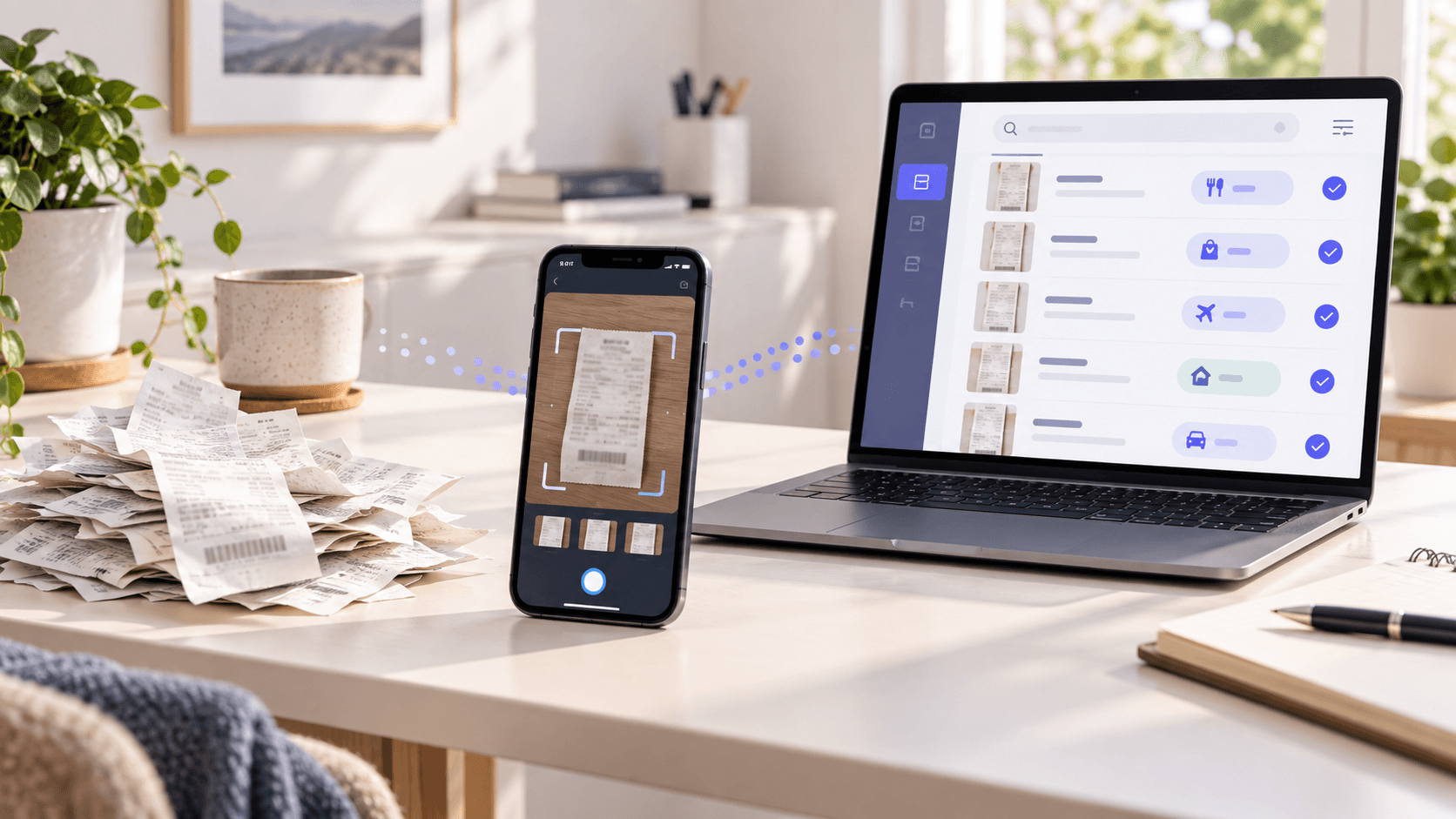
If you work for yourself, every administrative task competes with work that earns revenue. Receipt capture software should shorten that work, not give you another complicated system to maintain.
The right app does more than save pictures of receipts. It should make it easy to collect paper and digital records, extract useful information, correct mistakes, categorize expenses and find a document later. It should also fit the way you already receive receipts, whether that is at a store, in your email or through an online account.
For a broader explanation of the process, read Receipt Capture for Small Businesses: What It Is and How to Get Started.
Quick answers about receipt-capture software
What is the fastest way to capture a large backlog of receipts?
Sort the backlog into manageable batches, remove staples, unfold receipts and separate multi-page documents before scanning. Use a high-speed scanner for uniform paper receipts or an app with batch capture for mixed sizes. Capture first, then review extracted information and exceptions in smaller groups. Trying to categorize every receipt before digitizing it usually slows the process.
How can receipt-capture software reduce manual data entry?
Receipt-capture software can use optical character recognition to extract details such as the vendor, transaction date, total and tax from an image. More capable systems can suggest categories, remember recurring vendors and match receipts with financial transactions. Users should still review unclear images and low-confidence results because unusual layouts, handwriting and faded printing may cause extraction errors.
What features should I look for in a receipt-capture app?
Look for mobile capture, email forwarding, file uploads, multi-page support, accurate data extraction, searchable records, categories, project fields and transaction matching. Also evaluate duplicate-management tools, accounting exports, user permissions, data security, retention options and pricing. The right app should support how your receipts arrive and what you need to do with their information after capture.
What should receipt capture software do?
Receipt capture software should turn a paper or digital receipt into an organized financial record with as little manual work as possible. A strong system accepts receipts from several sources, uses optical character recognition to extract details, provides a review step, makes records searchable and allows the information to be shared or exported when needed.
That distinction matters. A camera app can preserve an image, but a receipt-capture platform should help you use the information in that image.
The IRS says businesses may use an electronic system to capture and organize records, but electronic records remain subject to the same basic recordkeeping principles as paper records. Supporting documents should be kept orderly and safely, and expense records generally need information such as the payee, amount, proof of payment, date and description of the purchase.
What is the fastest way to capture a large backlog of receipts?
The fastest way to capture a large receipt backlog is to group receipts by format, use a batch method for each group and postpone detailed categorization until after capture. Scan stacks of standard paper receipts with an automatic document feeder, upload existing digital files together and use mobile batch capture for irregular or fragile receipts. Then review the captured records in smaller sessions.
Avoid organizing every receipt by month, category or client before you scan. That creates an extra sorting project and makes it easier to stall. Your first goal is to create a complete, readable digital record. You can organize the extracted information afterward.
A practical backlog workflow
- Gather receipts by source. Make separate groups for loose paper, multi-page documents, email receipts and files already saved on your devices.
- Prepare the paper. Remove staples, unfold corners and flatten creases so dates, totals and edges are visible.
- Use the fastest suitable capture method. An automatic document feeder is efficient for a large stack of similar pages. A mobile app is usually better for long, delicate or unusually shaped receipts. Upload tools are best for PDFs and image files already on your computer.
- Send everything to one review queue. Do not scatter the new files across a camera roll, downloads folder and email inbox.
- Check quality before discarding anything. Verify that the full receipt is visible, small numbers are readable and pages have not been skipped or captured twice.
The University of Illinois System’s scanning guide recommends careful document preparation, including removing staples and unfolding corners, plus sampling scanned pages for legibility, completeness and missing edges. It recommends 300 PPI for general scanning and grayscale for documents with low contrast or fading. Those standards were written for broader records projects, but they provide a useful quality baseline for a receipt backlog.
If you have only a few dozen receipts, a phone with batch capture may be the simplest choice. If you have several hundred flat, standard-sized receipts, a compatible scanner with an automatic document feeder can save more time. The fastest method is the one that handles your actual mix of documents without creating hours of rescanning.
How can receipt-capture software reduce manual data entry?
Receipt-capture software reduces manual data entry by using optical character recognition, or OCR, to read text from a receipt image and convert important details into usable fields. Instead of typing every record from scratch, a freelancer can review extracted information such as the vendor, transaction date and total, correct anything that is wrong and add business context the software cannot know.
Good software can reduce work at several points:
- During capture: It detects document edges, crops the image and improves readability.
- During extraction: OCR identifies receipt details and creates a structured record.
- During organization: The system may suggest categories or remember how a recurring vendor was categorized.
- During retrieval: Search and filters help find a receipt without opening every image.
- During bookkeeping: Integrations or exports reduce the need to retype the same information into another system.
Automation does not eliminate review. Blurry images, faint text, unusual layouts and handwritten notes can affect extraction. A useful app should show the receipt image beside the extracted fields so you can compare them quickly.
The software also cannot reliably determine every business decision. You may still need to add a project or client, describe the business purpose or separate business and personal items. Think of OCR as a way to replace repetitive typing, not your judgment.
What features should I look for in a receipt-capture app?
Look for a receipt-capture app that supports your common receipt sources, processes multiple documents efficiently, extracts accurate data and makes the resulting records easy to review, search, categorize and export. Also examine security, access to your files and the ease of correcting errors. The best app is the one you will use consistently throughout the year.
Use these criteria when comparing options:
| Feature | Why it matters | Question to ask before buying |
| Multiple capture methods | Receipts may arrive on paper, by email or as downloads | Can I use a phone, email forwarding, file upload and a compatible scanner? |
| Batch capture and bulk upload | Backlogs are slow when every item must be handled separately | Can I capture or upload several receipts in one session? |
| OCR data extraction | Reduces repetitive typing | Which fields are extracted, and can I edit them easily? |
| A clear review workflow | Automation still needs oversight | Where do unreviewed items go, and can I compare data with the original image? |
| Search and filtering | A stored receipt has little value if it is hard to find | Can I search by vendor, date, amount, keyword or category? |
| Categories, notes and custom fields | Adds business context a receipt may not contain | Can I record a category, client, project or business purpose? |
| Multi-page and split-receipt tools | Invoices and mixed purchases do not always fit one simple image | Can I combine pages, reorder them or split one receipt into separate amounts? |
| Transaction matching | Connects documentation with the payment record | Can the app match a receipt to an imported bank or card transaction? |
| Accounting and tax exports | Prevents the same data from being entered again | Does it connect to the system I use, and what information is transferred? |
| Security and file access | Receipts contain sensitive financial information | Is data encrypted, backed up and exportable if I leave the service? |
| Support and compatibility | A workflow is only useful when it works with your devices | Does the app support my phone, browser, scanner and preferred file types? |
Do not accept a vague claim such as “AI-powered” as proof that an app will save time. Ask what information the software extracts, how you review it and what happens after capture.
How should I test receipt-capture software before choosing it?
Test receipt-capture software with a small set of real documents before committing to it. Include a clean paper receipt, a long receipt, a faded receipt, an emailed PDF and a purchase with several line items. Time the entire process from capture to an organized, searchable record, then check the extracted details and try to find each document again.
Use this five-part test:
- Capture the same five receipts using the available methods.
- Check the vendor, date, total and other extracted fields.
- Correct one error and categorize each expense.
- Search for a receipt using only the information you are likely to remember later.
- Export or share a record in the format your bookkeeper, accountant or other software needs.
This reveals more than a polished product demonstration. It shows how many clicks your normal workflow requires and where you will still have to enter information manually.
When is a simple cloud folder enough?
A basic cloud folder may be enough if you receive only a few receipts, need only to preserve the images and are comfortable naming and organizing every file yourself. It can be a low-cost starting point for a freelancer with simple expenses.
Dedicated receipt-capture software becomes more useful when receipts arrive through several channels, a backlog is growing, manual entry is taking too long or you need searchable data, categories, transaction matching and exports. The question is not whether an app can store a receipt. It is whether it removes enough steps from your recurring workflow to justify the cost.
How does Neat support receipt capture for freelancers?
Neat is one option for freelancers who need more than basic image storage. Neat uses OCR to extract information, lets users organize and search documents, and can match uploaded receipts with streamed financial transactions. It also supports exports and integrations with tools including QuickBooks, TurboTax and H&R Block.
For backlogs and recurring digital receipts, those capture choices matter. Neat works with TWAIN-compliant scanners, while its Email-In feature gives subscribers a personalized address for forwarding e-receipts and supported attachments into a review queue.
Neat’s Smart Categorization uses the category most commonly assigned to a recognized vendor and applies it to new files from that vendor. That can reduce repetitive categorization while leaving the user able to review or change the result.
Because receipts can contain financial and personal information, security should be part of the comparison. Neat states that it encrypts data in transit and at rest and maintains backed-up online replicas. Details are available on Neat’s security page.
No capture system removes the need to review unusual, faded or mixed receipts. Neat is most relevant when you want multiple capture methods, extracted data, searchable organization and financial-document workflows in one place. If you only need to store a handful of images, a simpler folder system may be sufficient.
Choose the workflow, not just the scanner
The best receipt-capture software does not simply produce a cleaner picture. It reduces the time between receiving a receipt and having a complete record you can find and use.
For a freelancer, that usually means fast capture from several sources, reliable extraction, a short review process, useful organization and a clear path into bookkeeping or tax preparation. Test those steps with your own receipts, and choose the system that requires the least repeated effort.
Try Neat free and see how your real receipt workflow performs.
This article provides general information about receipt-capture software and recordkeeping. It is not accounting, tax or legal advice. Consult a qualified professional about requirements for your business.
Share This Article


Popular

September 23rd, 2026

March 9th, 2022


June 26th, 2020


October 2nd, 2026