
How to Scan Receipts Accurately with a Phone or Scanner
October 21st, 2026 | Small Business Resources
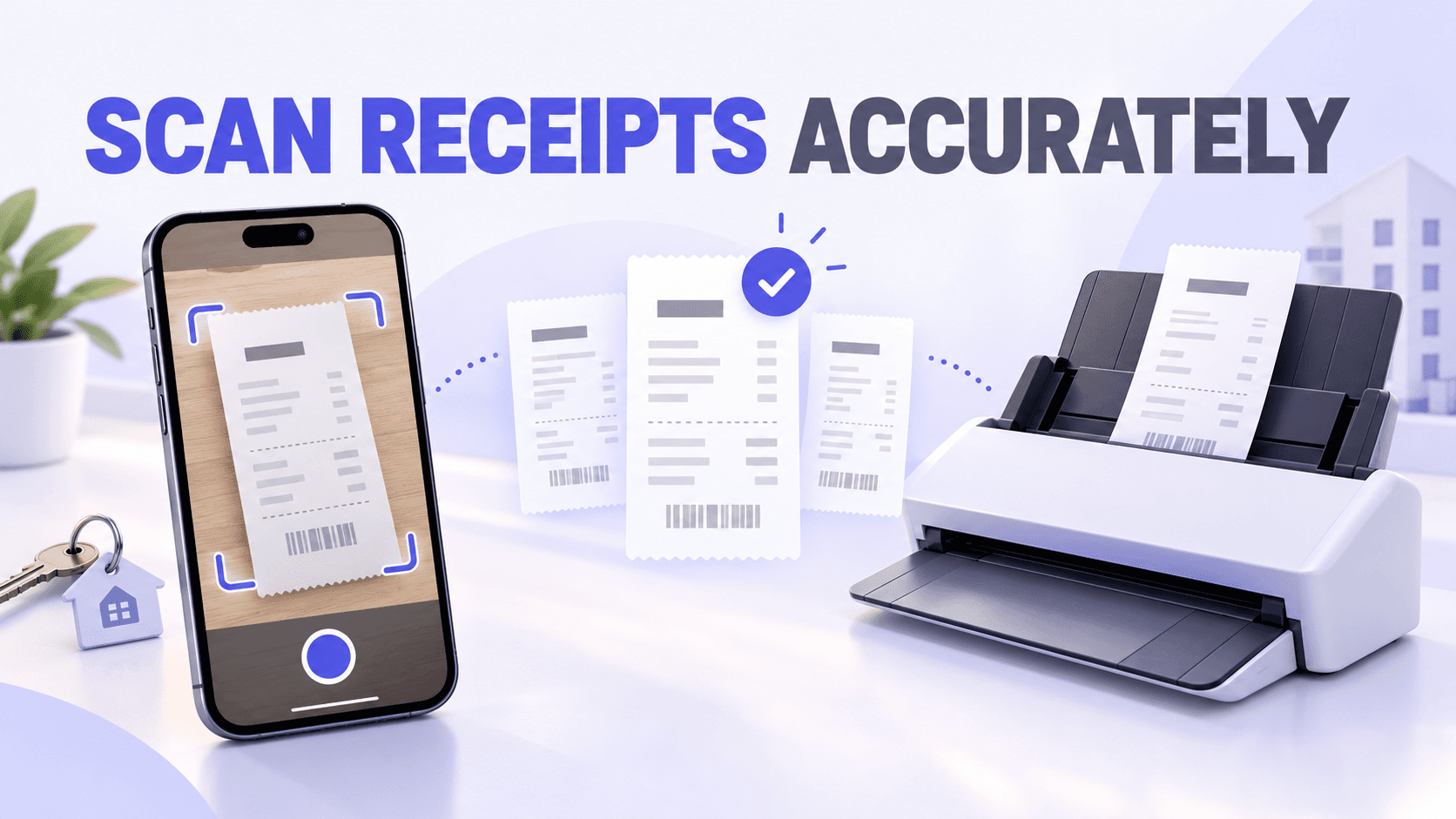
A phone camera can replace a dedicated receipt scanner for most routine receipt capture. A modern phone works especially well when you photograph receipts immediately after a purchase and use an app that detects edges, crops the image, improves readability, and applies OCR.
A dedicated scanner remains more efficient when you need to process a large receipt backlog, capture hundreds of documents consistently, or handle fragile receipts that need a flat scanning surface.
For a property manager receiving receipts from maintenance visits, supply runs, contractors, and multiple rental properties, the best solution may be a combination: use a phone for daily capture in the field and a document scanner for accumulated paperwork at the office.
Quick answers about scanning receipts
Can a phone camera replace a receipt scanner?
A phone camera can replace a receipt scanner for most day-to-day capture when the receipt is flat, well lit, in focus, and photographed against a contrasting background. A dedicated scanner is generally faster for high-volume backlogs and more consistent for repetitive office scanning.
How can I improve the accuracy of a receipt scan?
Clean the camera lens, flatten the receipt, use even lighting, avoid glare and shadows, position the camera directly above the document, fill the frame, and review the image before saving it. Always verify OCR-extracted information against the receipt.
What is the best resolution for scanning receipts?
For a document scanner, 300 ppi is a practical starting point for clear, normally sized receipt text. Use 400 ppi grayscale or color for faded receipts, unusually small print, handwriting, or poor contrast.
Phone cameras do not normally present receipt capture as a ppi setting. Instead, make sure the receipt fills the frame and remains sharp and readable when you zoom in.
How do I scan long or unusually shaped receipts?
Place the entire receipt on a contrasting surface and capture it from directly above. If the text becomes too small, photograph overlapping sections and save them as pages of the same digital record. A scanner with a long-document mode may also work.
Can I scan multiple receipts at once?
Yes. Use a mobile app’s batch-capture function or a document scanner with an automatic feeder. Capture each receipt as a separate item unless several images are pages or sections of the same receipt.
Avoid placing several unrelated receipts in one photograph because smaller text, overlapping edges, and multiple totals can reduce OCR accuracy.
How do I scan a large receipt backlog efficiently?
Sort the backlog into manageable groups, choose a consistent naming and filing structure, use batch capture or a document feeder, process one group at a time, and review every batch before storing or discarding the paper.
Phone camera versus receipt scanner
A phone and a dedicated scanner can both create useful digital receipt records. The right option depends on where receipts originate, how many you process, and the condition of the documents.
| Capture method | Best use | Primary advantage | Potential limitation |
| Phone camera | Receipts captured in the field | Immediate and convenient | Quality depends on lighting and technique |
| Sheet-fed scanner | Large stacks of standard receipts | Fast, consistent batch processing | May struggle with curled, fragile, or irregular receipts |
| Flatbed scanner | Fragile, damaged, or unusually shaped receipts | Keeps the document flat and protected | Slower for large volumes |
| Combination workflow | Property managers with field and office activity | Matches each document to the most efficient method | Requires one consistent storage system |
A property manager might use a phone to capture a hardware-store receipt before leaving the parking lot. A weekly stack of mailed invoices and contractor paperwork might be processed with an office scanner.
The important part is not using one capture method for everything. It is making sure every document reaches the same organized system.
When can a phone replace a dedicated scanner?
A phone is usually enough when:
- You capture receipts one at a time
- Purchases happen away from the office
- Receipts are in reasonably good condition
- The document can be placed on a flat surface
- The capture app detects and crops document edges
- You review the image immediately
- Your workflow includes OCR, organization, and search
A phone may be the better option for maintenance technicians or property managers who purchase supplies at different locations. Capturing a receipt immediately also reduces the chance that it will be lost, faded, or separated from the property information needed to categorize it.
A dedicated scanner may be more appropriate when:
- You regularly process large stacks
- Receipt capture is handled from a central office
- You need consistent resolution and color settings
- Documents must be processed through a repeatable workflow
- You frequently scan multipage vendor records
- A backlog contains hundreds of receipts
- Receipts are too fragile or curled for reliable phone capture
A phone can replace the scanner as a device, but it does not replace the rest of the receipt-management process. You still need to confirm readability, verify extracted information, organize the file, and connect it with the correct expense or property.
How to scan a receipt accurately with your phone
1. Clean the camera lens
A fingerprint or thin layer of dust can soften text and reduce contrast. Wipe the lens with a clean, soft cloth before starting a scanning session.
This is especially important when the phone has been carried through maintenance work, construction areas, or outdoor property inspections.
2. Choose a contrasting background
Place a white receipt on a dark, plain surface. Use a light surface for a dark or colored document.
Contrast helps a mobile scanning app distinguish the receipt’s edges from its surroundings. Avoid backgrounds with printed patterns, wood grain, paperwork, tools, or other visual distractions.
3. Flatten the receipt
Smooth folds and curled edges before capturing the image. Thermal-paper receipts often curl after being stored in a pocket, vehicle, or envelope.
If necessary, use clean, nonreflective objects to hold the corners outside the printed area. Do not cover the vendor, date, line items, tax, total, or payment information.
4. Use even, indirect lighting
Bright, even lighting produces the clearest image.
Natural light near a window or diffused overhead lighting often works well. Avoid:
- Strong shadows from your hands or phone
- Direct sunlight that washes out thermal print
- Flash reflecting from glossy paper
- Mixed lighting that changes the receipt’s color
- Very dark environments that introduce blur or image noise
If the receipt has glossy areas, turn off the flash and reposition the document or light source.
5. Hold the phone parallel to the receipt
Position the camera directly above the document, with the phone parallel to the surface.
Capturing at an angle can distort the receipt, make one end appear smaller, and reduce OCR accuracy. Many document-capture apps can correct perspective, but starting with a straight image produces a better result.
6. Fill the frame without cutting off the edges
Move close enough that the receipt uses most of the image while keeping every edge visible.
Too much empty background makes the text unnecessarily small. Moving too close may crop the vendor name, final total, or bottom of the receipt.
For narrow receipts, hold the phone vertically so the document uses more of the available frame.
7. Let the camera focus
Wait until the printed text appears sharp before capturing. If your camera permits it, tap the center of the receipt to set focus.
Hold the phone steady with both hands. If images remain blurry, rest your elbows on a table or use a simple phone stand.
8. Review the image before uploading
Zoom in and confirm that you can read:
- Vendor name
- Transaction date
- Individual purchases when needed
- Tax
- Total amount
- Payment information
- Business-purpose notes
- Property or project information
Retake the image immediately if any required information is blurry, cropped, obscured by glare, or hidden by a fold.
9. Verify the extracted information
OCR converts visible text into usable data, but even a sharp image can contain confusing characters.
Verify the vendor, date, subtotal, tax, total, category, and other important fields before treating the record as complete.
For a property-management team, also confirm that the receipt is assigned to the correct building, unit, maintenance request, owner, or reimbursable expense.
How does scan resolution affect the accuracy of digital receipt capture?
For standard paper receipts, scan at 300 ppi in grayscale or color. This generally provides enough detail for readable text and OCR without producing unnecessarily large files.
Use 400 ppi when the receipt has:
- Faded thermal printing
- Small characters
- Low contrast
- Handwritten notes
- Stains or discoloration
- Fine line-item details
- Text printed over a colored background
The National Archives identifies the 300 to 400 ppi range for grayscale and color scanning of textual records, with 400 ppi recommended for documents with poor legibility. Although those guidelines are designed for archival records, they provide a useful technical reference for receipt scanning.
Scanning every receipt at 600 ppi may create much larger files without producing a meaningful improvement for ordinary receipt text. Test a higher setting when a specific receipt remains difficult to read.
Scanner resolution guide
| Receipt condition | Suggested starting setting |
| Clear black text on light paper | 300 ppi grayscale |
| Colored receipt or color-coded information | 300 ppi color |
| Faded thermal receipt | 400 ppi grayscale or color |
| Very small or low-contrast print | 400 ppi grayscale or color |
| Handwritten annotations | 400 ppi color |
| Severely damaged or difficult document | Test 400 to 600 ppi and keep the clearest version |
What resolution should I use with a phone?
Phone cameras usually measure images in pixels rather than asking you to select a scanning resolution.
For accurate phone capture:
- Use the phone’s normal document-capture setting.
- Allow the receipt to fill most of the frame.
- Do not use digital zoom.
- Avoid screenshots of a distant receipt photo.
- Do not resize or heavily compress the image before OCR.
- Check that small text remains readable when enlarged.
A high-megapixel camera will not compensate for poor focus, glare, shadows, or a receipt that occupies only a small portion of the image.
Should receipts be scanned in color, grayscale, or black and white?
Grayscale works well for many ordinary receipts because it preserves variations in light and dark while creating a relatively compact image.
Use color when:
- Color helps interpret the document
- The receipt contains highlighted or handwritten information
- Printing is faint or uneven
- Different colors separate totals, discounts, or payment information
- The receipt is stained or discolored
Black-and-white mode can produce a small, high-contrast file, but it may cause faint thermal text to disappear. Review the result carefully before using it for faded receipts.
If you are unsure, capture the original in color and apply an enhancement filter to a working copy. Preserve the version that provides the most complete, readable record.
What is the best way to digitize receipts that are too long to fit in a single scan?
Long receipts require special attention because fitting the entire document into one image can make the text too small.
Option 1: Capture the entire receipt
Lay the receipt flat, position the phone higher, and photograph the full document.
Use this method only if the text remains clear when enlarged. Make sure the top and bottom are both visible.
Option 2: Capture the receipt in sections
If a full image makes the text unreadable:
- Capture the top section, including the vendor and date.
- Move down the receipt and capture the next section.
- Include a small area of overlap between images.
- Continue until the total and payment information are captured.
- Save the images as pages of one combined receipt record.
- Verify that no line items were omitted between sections.
Do not save the sections as unrelated receipts. That can separate the total from its vendor, date, or business purpose.
Option 3: Use a scanner’s long-document setting
Some sheet-fed scanners support long receipts. Check the scanner’s size limitations and long-document settings before feeding the receipt.
Straighten the paper first and make sure it can move through the scanner without catching or tearing.
Option 4: Use a flatbed scanner
A flatbed scanner can capture a long receipt in overlapping sections without pulling fragile paper through rollers. Combine the resulting pages into one digital record.
How do I scan unusual, curled, or damaged receipts?
Narrow receipts
Use a contrasting background and manual capture if the app cannot detect the edges. Position the phone vertically and fill as much of the frame as possible.
Curled receipts
Gently flatten the receipt. Hold the corners outside the printed area or place the document under a clean, nonreflective sheet designed for document capture.
Watch for reflections if anything transparent is placed over it.
Crumpled receipts
Smooth the document carefully without applying heat. Thermal paper can darken or become unreadable when exposed to excessive heat.
Use side lighting only if it does not create shadows across folds.
Torn receipts
Arrange the pieces on a contrasting background without overlapping the printed content. Capture the full reconstructed receipt and take additional close-up images if necessary.
Faded receipts
Capture the receipt in color before experimenting with filters. Increase contrast cautiously and confirm that the adjustment does not remove faint characters.
If part of the information is already missing, preserve the image and add contextual documentation such as a card statement, invoice, order confirmation, or business-purpose note. Learn more in our guide to handling missing, faded, mixed, and unusual receipts.
How can I efficiently digitize several receipts while keeping each receipt organized as a separate record?
Yes, but “at once” should normally mean one scanning session, not one combined photograph.
Use mobile batch capture
Batch capture lets you photograph several receipts in sequence and upload them together. Each receipt should be saved as a separate item.
Use a combined multi-page record only when the images belong to the same purchase, such as:
- Sections of one long receipt
- The front and back of one document
- A receipt with an attached return slip
- Multiple pages of one invoice
Use a document feeder
A sheet-fed scanner can process a stack efficiently if it supports the size, thickness, and condition of the receipts.
Before loading the stack:
- Remove staples and paper clips.
- Flatten major folds.
- Separate sticky or taped documents.
- Check the scanner’s minimum paper width.
- Use a carrier sheet for fragile documents when supported.
- Keep receipts from different batches in their intended order.
Avoid photographing a pile of receipts
Placing five or six receipts next to each other for one photograph may seem faster, but it can create several problems:
- Each receipt occupies fewer pixels.
- OCR may confuse vendors, dates, and totals.
- Edges may overlap.
- Individual documents become harder to categorize.
- One expense cannot be easily matched with one record.
Separate receipt records create cleaner search, review, matching, and reporting.
What is the most effective workflow for digitizing and organizing months or years of accumulated receipts?
A backlog should be processed as a controlled project, not as one enormous scanning session.
1. Define the scope
Determine:
- Which dates the backlog covers
- Approximate number of receipts
- Whether receipts belong to multiple properties
- Whether any deadlines are approaching
- Who will review the completed records
- Which documents require priority handling
For a property manager, prioritize receipts connected with unreconciled transactions, owner statements, reimbursements, tax preparation, or open maintenance projects.
2. Sort into broad groups
Use categories that support the next step in the workflow.
Useful property-management groups might include:
- Property or building
- Month or quarter
- Maintenance project
- Employee or contractor
- Payment account
- Reimbursable and nonreimbursable expenses
- Needs research
- Damaged or incomplete receipts
Avoid spending too much time building a perfect paper filing system. The objective is to make scanning and digital review manageable.
3. Remove obvious problems
Before scanning:
- Separate duplicate receipts.
- Remove blank pieces of paper.
- Unfold documents.
- Remove staples and clips.
- Place torn pieces together.
- Isolate receipts that require additional documentation.
- Flag receipts with missing dates, totals, or business purposes.
Do not automatically discard a duplicate until you confirm that it is not a separate transaction or a customer copy containing different information.
4. Choose the capture method
Use a document scanner for clean, standard-sized stacks when the scanner supports them.
Use a phone or flatbed scanner for:
- Long receipts
- Torn or fragile receipts
- Curled thermal paper
- Receipts with writing on both sides
- Mixed document sizes
- Items requiring individual attention
5. Work in manageable batches
Process one property, month, or payment account at a time.
A batch of 25 to 50 receipts is often easier to review than one upload containing hundreds of documents. Choose a size your team can capture and quality-check in the same work session.
6. Separate capture from detailed organization
Capture the documents first using a consistent batch label. Then review and add detailed information such as property, unit, project, expense category, and business purpose.
This keeps the scanner moving while still ensuring that context is added before the records are considered complete.
7. Review each batch
Before moving to the next group, confirm:
- The number of digital records matches the paper batch.
- Every receipt is readable.
- No pages are missing.
- Long receipts remain together.
- Images are correctly rotated.
- Duplicate scans are removed.
- Extracted information is accurate.
- Documents are assigned to the correct property or project.
8. Reconcile the records
Match the captured receipts with bank, credit-card, reimbursement, or property-accounting activity.
This step can reveal:
- Missing receipts
- Duplicate purchases
- Personal transactions
- Incorrect totals
- Credits or returns
- Transactions assigned to the wrong property
- Receipts that require an explanatory note
9. Preserve the paper until quality control is complete
Do not dispose of the paper immediately after scanning.
First, confirm that the digital record is complete, accurate, legible, retrievable, and stored in the correct location. Also check whether an original is required by a contract, lender, insurer, property owner, warranty, or another applicable rule.
The IRS states that supporting documents such as receipts, invoices, and paid bills should be kept orderly and secure. Its electronic-storage guidance requires electronic records to be complete, accurate, accessible, and reproducible in a legible format. Review IRS Publication 583 and consult a qualified professional when specific retention requirements are unclear.
Receipt-scan quality checklist
Before treating a scan as complete, ask:
- Is the entire receipt visible?
- Are all four edges captured?
- Is the image in focus?
- Is the text readable when enlarged?
- Are shadows and glare absent?
- Is the receipt correctly rotated?
- Can I read the vendor, date, and total?
- Are necessary line items visible?
- Is the payment method documented when needed?
- Is the receipt associated with the correct property or project?
- Have the OCR-extracted fields been verified?
- Can the record be found again using search, folders, categories, or tags?
A scan is not accurate simply because a file exists. It is accurate when someone can retrieve the record and understand the transaction it supports.
How we help make receipt scanning easier
We designed Neat to support both mobile and office-based receipt capture.
With the Neat mobile app, authorized users can:
- Photograph receipts as purchases occur
- Use automatic edge detection and cropping
- Switch to manual capture when necessary
- Apply color, grayscale, black-and-white, and enhancement filters
- Crop or rotate images
- Capture several receipts in one batch
- Save captures as separate items
- Combine several images into one multipage record
- Import existing images from a phone
Neat processes uploaded receipts with OCR to turn visible information into searchable data. New documents can be reviewed through the Needs Review filter so users can confirm extracted information and complete missing details.
For office scanning, the Neat Desktop App can send scanned images to Neat and works with supported Neat scanners and most TWAIN-compliant third-party scanners.
A property-management team can use mobile capture for field purchases and an office scanner for accumulated vendor documents while keeping both types of records in one digital File Cabinet.
OCR accuracy still depends on image quality. Users should review captured documents, verify extracted fields, and correct information before relying on it for bookkeeping or reporting.
Learn more about capturing every business receipt and organizing digital receipts with folders, categories, and tags.
Choose the capture method that fits the receipt
A phone camera can replace a dedicated receipt scanner for most routine receipt capture, especially when documents are photographed as soon as the expense occurs.
A scanner still provides an advantage for high-volume, office-based processing. A flatbed can be helpful for fragile or irregular documents, while batch mobile capture works well for smaller stacks and receipts collected in the field.
Whichever method you choose, accurate receipt scanning depends on the same fundamentals:
- Capture the entire document.
- Keep the text sharp and readable.
- Avoid shadows and glare.
- Use sufficient resolution.
- Save each transaction as a distinct record.
- Verify extracted information.
- Organize the receipt while its context is still known.
- Confirm the digital record before disposing of paper.
The goal is not simply to replace paper with an image. It is to create a complete, readable, searchable record that can support bookkeeping, property reporting, reimbursement, and tax preparation.
Ready to create a more reliable receipt-capture process? Start your free Neat trial.
Share This Article


Popular

September 23rd, 2026
March 9th, 2022


June 26th, 2020


October 2nd, 2026