
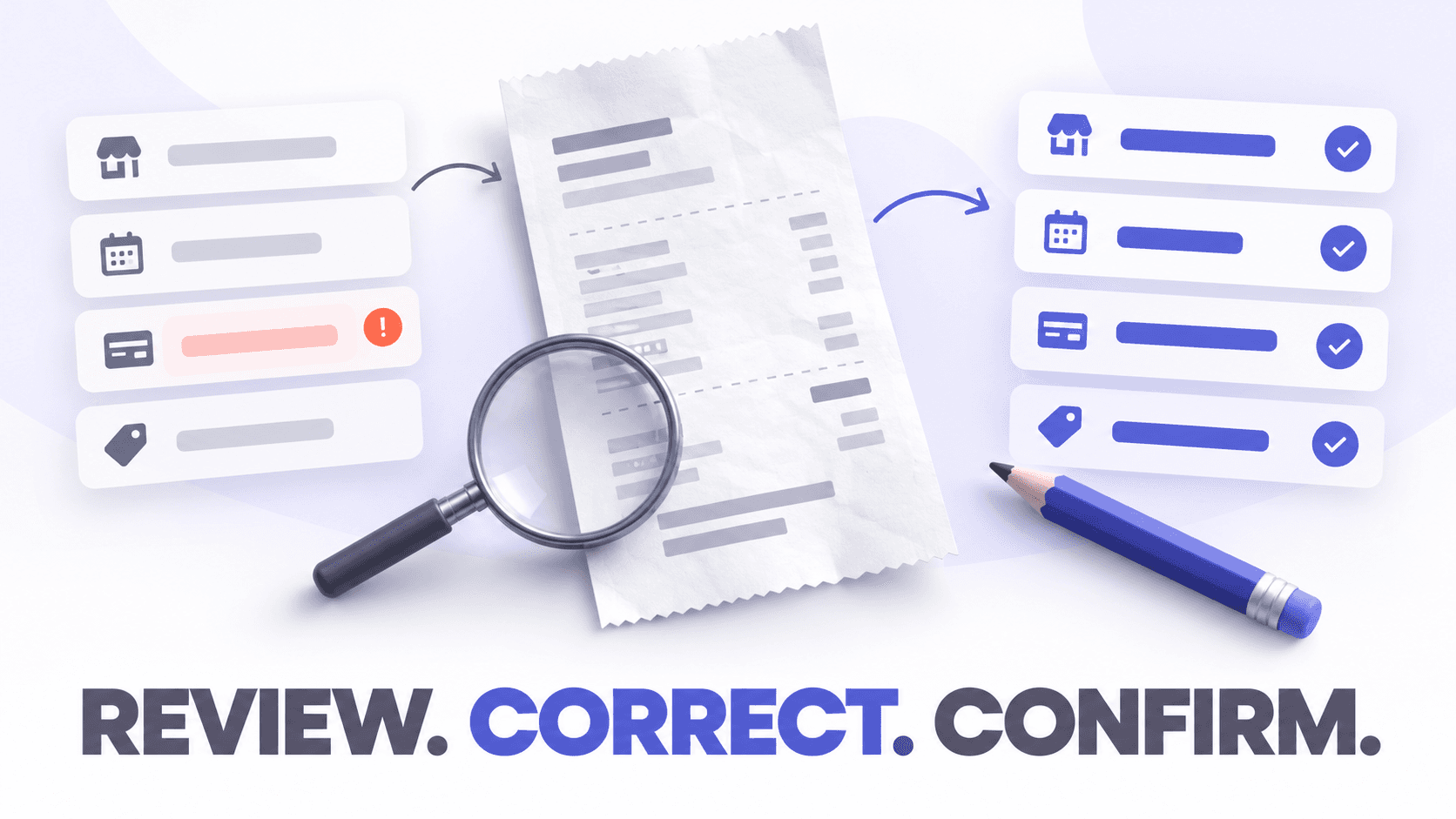
To review information extracted from a receipt, compare the digital record with the visible receipt before categorizing, matching, reimbursing, or reporting the expense. Check the vendor, transaction date, total, tax, currency, category, and relevant job or project.
If receipt OCR reads a value incorrectly, correct the affected field when the image is clear. If the image is blurry, cropped, distorted, or incomplete, capture the receipt again. Correcting the error early helps prevent inaccurate reports, failed transaction matches, and misstated project costs.
For construction bookkeepers and contractor administrative teams, this review step is especially important. A misplaced decimal or incorrect project assignment can affect job-cost reports, client billing, employee reimbursements, and month-end reconciliation.
Quick answers
How should I review information extracted from a receipt?
Open the receipt image beside the extracted data. Confirm the vendor, date, total, tax, currency, category, and business purpose. Then compare the record with the corresponding bank or credit card transaction.
What happens when receipt OCR reads a value incorrectly?
The incorrect value may flow into searches, reports, categorization, transaction matching, or reimbursement records. Edit the field when the image is readable. Retake or rescan the receipt when the source image is causing the error.
Which receipt fields should I check first?
Start with the total, currency, date, vendor, category, and project or job. These fields usually have the greatest effect on bookkeeping records.
Should I correct the field or scan the receipt again?
Correct the field if the receipt image is complete and legible. Capture it again if information is missing, blurry, cut off, obscured by glare, or heavily distorted.
Do I need to review every OCR result?
A human review is advisable before a receipt affects the books. You can make the process more efficient by prioritizing high-value, unusual, unmatched, faded, handwritten, or foreign-currency receipts.
Can corrected receipts still be matched with transactions?
Yes. After correcting the vendor, date, or amount, search for or confirm the appropriate transaction. In Neat, suggested matches are based on information such as the transaction date, amount, and vendor, but the user must confirm the match.
What should you check in a receipt OCR result?
Receipt OCR converts information visible in an image into structured fields. Depending on the receipt and software, those fields may include:
- Vendor
- Transaction date
- Subtotal
- Tax
- Tip
- Total
- Currency
- Payment method
- Expense category
- Line items
- Notes or business purpose
- Customer, property, job, or project
Neat uses OCR to extract information such as the vendor, date, and amount while also making receipt text searchable.
OCR results should be treated as a starting point, not an unquestionable source of truth. The original receipt remains the evidence you use to verify the extracted data.
A step-by-step receipt OCR review process
1. Inspect the receipt image
Review the image before checking individual fields. Confirm that:
- The entire receipt is visible.
- The top and bottom have not been cropped.
- The image is in focus.
- There is no glare over important information.
- The receipt is facing the correct direction.
- The paper is reasonably flat.
- All pages or sections of a long receipt are included.
- The total and payment information are readable.
If part of the receipt is missing, editing the extracted data alone does not fix the underlying record. Capture the receipt again when possible.
For better source images, see How to Scan Receipts Accurately with a Phone or Scanner.
2. Confirm the document type
Make sure the document is identified correctly. A receipt, invoice, bill, credit memo, and purchase order can contain similar information but serve different accounting purposes.
If a receipt has been classified as the wrong item type, change or reprocess it according to the software’s workflow. In Neat, reprocessing an item runs OCR again and can repopulate its extracted information, so review the resulting fields afterward.
3. Verify the total and currency
The total is usually the highest-priority field because it affects transaction matching, reimbursements, expense totals, and reports.
Compare the extracted total with the final amount charged. Watch for:
- A missing decimal point
- A subtotal mistaken for the final total
- A tip excluded from the amount
- A balance or change amount mistaken for the total
- Digits confused by faded printing
- A currency symbol interpreted incorrectly
A receipt for $1,268.40, for example, could be read as $126.84. If that error is not corrected, the receipt may fail to match its card transaction and substantially understate the expense.
For receipts in another currency, verify both the currency and the amount recorded by your accounting process. Do not assume the currency from the vendor name alone.
4. Check the transaction date
Confirm that OCR captured the purchase date rather than:
- The receipt printing date
- An order date
- A delivery date
- A payment due date
- A loyalty-program date
- Part of the receipt number
An incorrect date can place the expense in the wrong reporting period or keep it from appearing beside the correct bank transaction.
5. Standardize the vendor
Compare the extracted vendor with the business shown on the receipt. OCR might capture a store location, payment processor, web address, or promotional headline instead of the primary merchant name.
Use a consistent vendor name when possible. For example, receipts from “BuildMart Store 104” and “BuildMart #104” may need to be standardized if your reporting system would otherwise treat them as separate vendors.
Consistent vendor records can improve:
- Vendor spending reports
- Search results
- Category suggestions
- Duplicate detection
- Transaction matching
6. Review the expense category
OCR may recognize receipt text, but it does not always know why the purchase was made.
A hardware store receipt could represent:
- Job materials
- Small tools
- Equipment repairs
- Vehicle supplies
- Office maintenance
- A personal purchase that should not be recorded as a business expense
Construction bookkeepers should use the receipt, employee notes, project information, and company accounting policy to select the correct category. Do not assign a category solely because the vendor is usually associated with one type of expense.
Neat’s own tax-preparation checklist recommends verifying both the receipt’s vendor, date, and amount and its assigned category.
7. Add the missing business context
A readable receipt can still be incomplete as a business record if it does not explain the purpose of the purchase.
Depending on your operation, add:
- Project or job number
- Property or service location
- Customer
- Employee or purchaser
- Business purpose
- Reimbursable status
- Billable status
- Approval note
- Equipment or vehicle identifier
For a restaurant receipt, the business purpose and attendees may matter more than the individual menu items. For a contractor’s material receipt, the job assignment may be essential for accurate project profitability.
8. Compare the receipt with its transaction
When bank or credit card transactions are available, compare:
- Amount
- Date
- Vendor
- Payment account
- Cardholder
- Currency
Do not approve a suggested match just because one field is similar. Two purchases from the same supplier on the same day may have different totals or belong to different projects.
If the suggested transaction is wrong, reject it and search for the correct one manually.
9. Split mixed-purpose receipts
Some receipts contain purchases that belong to more than one category, project, customer, or reimbursement status.
For example, a contractor might purchase:
- Lumber for Project 417
- A replacement drill for general operations
- Cleaning supplies for the office
Assigning the full receipt to job materials would overstate Project 417’s cost. Split the transaction when your bookkeeping workflow supports it, then confirm that the split amounts add up to the receipt total.
10. Mark the record as reviewed
Once the image and fields have been verified:
- Save the corrections.
- Attach or match the appropriate transaction.
- Add required notes or project information.
- Mark the record as reviewed or complete.
- Resolve any duplicate or exception warnings.
This creates a clear distinction between receipts that have merely been captured and receipts that are ready for bookkeeping.
How can businesses identify and correct OCR errors to maintain accurate receipt and expense records?
The impact depends on which value was misread.
| Incorrect field | Possible result |
| Total | Failed transaction match, incorrect reimbursement, or misstated expenses |
| Date | Expense appears in the wrong reporting period |
| Vendor | Fragmented vendor reporting or inaccurate category suggestions |
| Tax | Incorrect tax tracking or reporting |
| Currency | Materially incorrect expense value |
| Category | Misclassified expenses and distorted financial reports |
| Project or job | Inaccurate job costs and profitability |
| Payment account | Incorrect reconciliation or duplicate entry |
| Receipt number | Reduced searchability or duplicate-detection problems |
An OCR error does not automatically mean the receipt is unusable. It means the extracted record needs correction or the source image needs to be replaced.
Should you edit, rescan, or reprocess the receipt?
Use the source of the error to choose the response.
| Situation | Recommended action |
| Image is clear, but one field is wrong | Edit the incorrect field |
| Image is blurry, dark, or distorted | Capture the receipt again |
| Part of the receipt is cropped | Rescan the complete receipt |
| Glare covers the total | Retake the photo without flash or direct reflections |
| Receipt was assigned the wrong document type | Change the item type or reprocess it |
| Vendor name is inconsistent | Standardize the vendor record |
| Several categories or jobs appear on one receipt | Split the expense |
| Suggested transaction is incorrect | Reject it and locate the correct transaction |
| Business purpose is missing | Add a note, project, customer, or job |
| Original receipt is too faded to recover | Add available supporting documentation and an explanatory note |
When correcting a field, remember that the edit changes the structured bookkeeping information. It does not improve the original image. Preserve an image that remains readable enough to support the corrected record.
A construction receipt review example
Imagine that a project coordinator uploads a hardware-store receipt for materials purchased for Job 417.
OCR extracts:
- Vendor: Build Mart #104
- Date: September 28
- Total: $126.84
- Category: General retail
The receipt image actually shows a total of $1,268.40. Most of the purchase is lumber and fasteners for Job 417, but one line is a replacement power tool for general company use.
The bookkeeper should:
- Correct the total to $1,268.40.
- Confirm the date and vendor.
- Split the power tool from the project materials if company policy requires it.
- Assign the materials to Job 417.
- Add the business purpose or purchaser if it is not already documented.
- Match the receipt with the correct card transaction.
- Mark the record as reviewed.
Without that review, the receipt could understate the transaction, fail to match the bank feed, and distort both job cost and equipment spending.
How to review a large batch efficiently
Review does not have to mean examining every field with equal intensity. Use an exception-based workflow.
Start with higher-risk receipts
Prioritize:
- High-value purchases
- Faded or damaged receipts
- Handwritten totals or tips
- Foreign-currency receipts
- Long, multi-page receipts
- Mixed personal and business purchases
- Unmatched receipts
- Duplicate warnings
- Purchases near month-end or year-end
- Receipts associated with reimbursable or billable work
Use a consistent review order
Checking the fields in the same sequence makes errors easier to spot:
- Image quality
- Document type
- Total and currency
- Date
- Vendor
- Category
- Project or job
- Transaction match
- Review status
Use bulk editing carefully
Bulk editing can help when several records genuinely share the same category, project, or review status. Neat supports editing selected items together, including assigning shared categories or updating review status.
Avoid bulk-changing totals, dates, or vendors unless you have verified every selected record. A time-saving shortcut can spread one error across an entire batch.
Sample completed work
Periodically reopen a selection of reviewed receipts and compare them with their images and transactions. Sampling helps identify recurring capture problems, category inconsistencies, or employees who need clearer submission instructions.
How to reduce receipt OCR errors before review
You can prevent many errors by improving the capture process:
- Photograph receipts promptly before thermal paper fades.
- Place the receipt on a flat, contrasting surface.
- Use even lighting.
- Avoid flash glare and heavy shadows.
- Hold the phone parallel to the receipt.
- Include every edge.
- Capture long receipts in a mode designed for multi-page or long documents.
- Add the business purpose and project at the time of purchase.
- Ask employees to submit receipts through one consistent workflow.
For a complete intake process, read How to Capture Every Business Receipt: Paper, Email, Mobile, and Cash.
How Neat helps with OCR review and correction
Neat combines receipt storage, OCR, searchable documents, extracted fields, and bookkeeping workflows in one system.
Construction bookkeeping and administrative teams can use Neat to:
- Capture receipts from a phone or scanner
- Extract information such as the vendor, date, and amount
- Search receipt text
- Review receipt images beside their stored information
- Edit fields such as the vendor, date, amount, category, and notes
- Reprocess incorrectly classified documents
- Apply appropriate bulk edits
- Match receipts with imported transactions
- Track whether records have been reviewed
The Neat mobile capture workflow also allows users to edit fields including the date, vendor, amount, category, and notes before upload.
This means the person closest to the purchase can provide important context before the receipt reaches the bookkeeping queue.
Build a reliable human-review checkpoint
Receipt OCR can remove much of the manual data entry involved in handling receipts. It cannot determine every business decision or guarantee that every extracted character is correct.
A reliable process has three parts:
- OCR extracts the information.
- A person verifies and corrects it.
- The completed record is matched, categorized, and approved.
Electronic records should remain accurate, complete, readable, and retrievable. That makes image quality and data review important parts of recordkeeping, not optional cleanup tasks.
With a consistent review checklist, construction bookkeepers and contractor administrative teams can benefit from OCR speed without allowing small recognition errors to become larger bookkeeping problems.
Start using Neat to capture, organize, and review receipts.
This article provides general educational information and is not tax, accounting, or legal advice.
Share This Article


Popular

September 23rd, 2026

March 9th, 2022


June 26th, 2020


October 2nd, 2026